Since a while back now we’ve been developing our Crazyflie CLI, a command-line client used for all things Crazyflie. The goal of the project has been to easily do simpler things with the Crazyflie without having to open the UI all the time during our development. During the development and testing of the new Crazyflie Rust library the CLI has also been used to exercise lots of the functionality before porting our main client over to it.
Features
Since the CLI has mainly worked as an internal tool for us, the feature set is growing to accommodate daily development use for us. That being said there’s lots of features that’s useful for all of our users outside Bitcraze as well. Here’s a few highlighted features:
- Display the Crazyflie console
- Logging and parameter sub-system access (i.e log variables and get/set parameters)
- Flash firmware (nRF51/STM32 and decks)
- Memory sub-system access (i.e read, write and display memory contents)
- Crazyflie configuration (i.e channel, address, datarate)
- Access to Lighthouse / Loco configuration (i.e read, write and display configuration settings)
- Power management (i.e on, off, sleep, reboot)
Interactivity and usability
To make CLI quick and easy to use, even for seldom used commands, we’ve added the following design features:
Documentation built it: The CLI itself has documentation and examples for commands, they can be access by writing the command+help or just leaving the command blank, for example just writing cfcli platform will list all the platform sub-commands.
Auto-complete on commands, arguments and parameter/log names: Although the CLI has documentation build it can be quicker to use tab to list commands and options if you already know what the commands do but you forgot what they are exactly or if you’re in a hurry.
Prompt the user if there’s multiple options: If you do not explicitly select an option, and there’s more than one, then you will be prompted. One example is the command cfcli log print, where if you do not specify what variables to log you will get an interactive list. Another example is cfcli bootload flash –bin firmware.bin, where it’s not specified where to flash the binary so you will be prompted to select where to flash it.
Stable CSV printouts: Although formatting of command outputs might change over time, the goal is to keep the CSV output stable to more easily use the out of the CLI as input for scripts and other programs. To enable CSV output format add the –csv option at the end of a command, like cfcli log print stabilizer.roll,stabilizer.pitch,stabilizer.yaw –csv
Package distribution
To make it easier for our users to install the CLI, and more importantly keep it up to date, we’ve decided to distribute it via package managers instead of only via a binary. On the projct page on Github you can find documentation on how to add the apt repo and brew tap. Remember to restart the terminal to get auto completion.
Examples
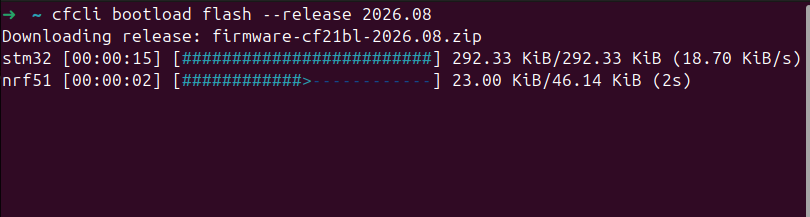
The intended way of using the cfcli is to first set it to use a specific Crazyflie (either via USB or radio) after which you do not have to specify the URI anymore, here’s a typical example of loading the 2026.08 release onto a Crazyflie which is connected via USB and you have a Crazyradio attached (you need this for flashing STM32/nRF firmware):
cfcli select --from-usb
cfcli bootload flash --release 2026.08
Here’s another example using the same configured Crazyflie for logging some variables using the interactive select:
cfcli log print --csv